
NPCs
Define characters with models, animations, right-click options, dialogue, combat stats, drop tables and scripts — and keep the client data contract intact.
11 min read
What an NPC is#
An NPC is any character the server controls: a shopkeeper, a quest giver, a guard, a monster. An NPC definition is the reusable template - model, animations, right-click options, combat stats, drops - identified by a numeric npc_id. Maps then place spawners that reference the definition, so one definition can stand in twenty places and every change you make here reaches all of them. See Regions and elements for spawn points, wander behaviors and respawn placement.
Like every record in this editor, an NPC is written to two files on save: the player's game reads assets/data/npcs.json to draw and animate it, and the server reads server/data/npcs.json to run its combat, options and scripts. You edit one form; the split is automatic (see Data Editor overview).
Create an NPC#
- In the Data Editor, open the NPCs tab and click + New NPC, or click the NPCs card on the Create New page. Drop a
.glb,.gltf,.fbxor.objon the card, drag a model from the model shelf, or pick one from the asset library. A freshly dropped file goes through the Import Model screen first. - Type a Name. Leave the ID on its default (the next free id) unless you are deliberately filling a gap.
- Under the preview, set Size (tiles) - the Tiles: spin box (1-10) is the square footprint the NPC occupies; a yellow tile on the floor of the preview shows it.
- On the right, the Animations column decides how the NPC moves:
- Base: - (From model clips) builds a new animation base from the animations embedded in the dropped model. Choosing an existing base instead (or dragging one in from the left panel's Animations tree) uses that base's clips and pre-fills its default idle/walk/run. This is the route for a model that ships without animations.
- Idle:, Walk: and Run: slots. The editor auto-fills them by clip name (idle/stand/breath, walk, run/sprint/jog); with no match, idle takes the first clip, walk falls back to idle and run to walk. Drag any clip from the Clips list onto a slot to change it; each slot has a play button and a clear button.
- Clips lists every animation in the model with a checkbox (untick a clip to leave it out of the new base) and a play button. Stop halts the preview.
- Press Finalize NPC. The model is imported, the animation base is created or attached, and the NPC opens in its own tab and auto-saves.
The NPC editor#
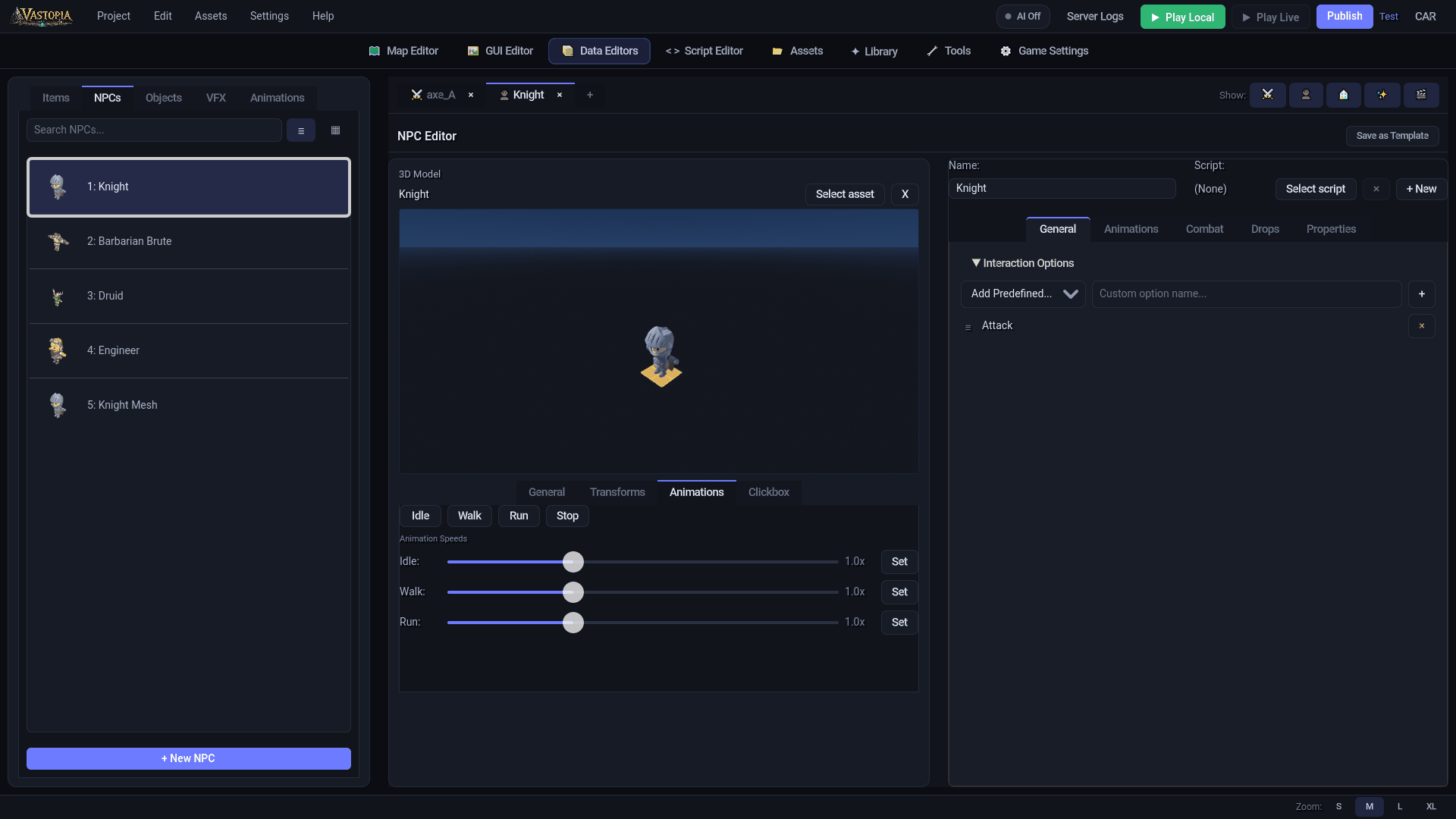
An open NPC is split in two. The left half is the visual setup: a 3D Model picker, a 3D preview (left-drag orbits, right-drag pivots, middle-drag pans, wheel zooms) and four tabs beneath it - General, Transforms, Animations, Clickbox. The right half holds Name: and Script: fields above five tabs - General, Animations, Combat, Drops, Properties. Save NPC in the header (or Ctrl+S) writes both files; Save as Template stores the record for reuse.
Model#
The picker under 3D Model selects a model from your asset library; the Import button browses for a .glb / .gltf (recommended) or a .fbx / .obj, which are converted through Blender first. Either way, a model that contains animations opens the Import Model - Extract & Setup dialog:
- Model Name: names the extracted mesh and the animation base.
- Create new animation base from this model (default when animations exist) - pick which clips to extract with the checkboxes, All or None.
- Use existing animation base - the mesh is kept and driven by a base you choose from the dropdown.
- No animation - mesh only.
For a dropped file the mesh is extracted without its animations (smaller file) and saved into the project; for a library model the picked asset stays as-is and only the base is created. Cancel on a dropped file discards the pending model; on a library model it keeps the model and skips the base setup. Clearing the picker clears the animation base selection too.
Left tabs#
| Tab | Controls |
|---|---|
| General | Size (tiles) 1-10, with the yellow footprint tile in the preview. |
| Transforms | Scale X/Y/Z (0.01-20), Position X/Y/Z (-10 to 10) and Rotation X/Y/Z (-180 to 180 degrees). Each group has a reset arrow that appears once a value leaves its default. These offset the model relative to its spawn point and ship to the client. |
| Animations | Idle / Walk / Run / Stop preview buttons, then Animation Speeds - an Idle:, Walk: and Run: slider from 0.1x to 3.0x with a Set button that previews at that speed. The multipliers are saved with the NPC and applied in game. Mapped Server Animations get their own play buttons here. |
| Clickbox | The region players must click to target the NPC. Shape: Box, Capsule or Mesh; Show Clickbox draws it in the preview; Auto-Fit wraps it around the model. Size and Offset X/Y/Z, plus Radius: and Height: for capsules. A new NPC starts as a 1 x 2 x 1 box offset 1 unit up. |
Name and Script#
Name: is the display name. Script: binds a server script from server/scripts/npcs/; + New opens the script creation dialog, which offers OnOption (checked by default), OnSpawn, OnDeath, Process (every tick) and OnDamageTaken, and saves the NPC immediately so the binding lands in server/data/script_bindings.json. The open-in-editor button jumps to the Script Editor. Script authoring is covered in NPC, object and interaction scripts.
General tab: Interaction Options#
This is the right-click menu players see on the NPC. Use the Add Predefined... dropdown for Attack, Talk-to or Trade, or choose Custom..., type a label in Custom option name... and press Enter or +. Each row has a drag handle to reorder, a status dot (green once a script exists), an Edit Method button and a remove button. Edit Method creates server/scripts/npcs/Npc_<id>.cs with one if (option == ...) block per option if no script is bound yet, then opens it at OnOption; options added later are appended to the existing script.
What each option does in game:
- Attack - handled by the server's built-in combat. Adding it turns on Attackable and switches you to the Combat tab; turning Attackable off removes it again.
- Talk-to (and any option whose id is
talk,talktoortalk_to) shows a dialogue dropdown on its row. Pick a conversation from the Dialogue editor or leave (No Dialogue); with a dialogue bound, the server starts it when the option is chosen. - Trade and custom options have no built-in behavior. Your NPC script's
OnOptiondecides what happens - for a shop, that is where you open one of your Shops.
Animations tab#
- Anim Base: selects the animation base (see Animations and animation bases). The x button deletes a base; the project's protected default base cannot be deleted.
- Idle Anim:, Walk Anim:, Run Anim: choose clips from that base. Picking a base pre-fills its defaults; (None) saves id 0.
- All Animations (double-click to preview) expands the base's full clip list.
- Server Animations map names the server triggers to clips: choose Attack, Block or Death from the dropdown (or Custom... and type a name), press Add, then pick the clip in the row's dropdown. Each row has a play button and a remove button. The server plays the Death mapping when the NPC dies, and a combat script's attacks name their animation and look it up in this list; a name with no mapping plays nothing.
Combat tab#
Tick Attackable to reveal the combat controls (it also adds the Attack option). The stats below let players fight and kill the NPC, and the NPC hits back on its own: auto-retaliate is on for every entity, so a hit NPC starts attacking whoever hit it using these stats. A Combat Script is what gives it authored attacks, graphics and phases instead of the plain swing.
| Control | Default | Notes |
|---|---|---|
| Combat Script | (None) | Binds one of the fights from Tools > Combat Scripts - the data-driven attacks and phases stored in server/schemas/Bosses/. The arrow button opens it there. Use this for any attacking NPC, not only bosses: a simple attacker is one melee attack and no phases. |
| Aggressive | off | Attacks players on sight. Reveals Aggro Radius (5 tiles, 0-64) - how close a player must come - and Aggro Leash (12 tiles, 0-128) - how far from its spawn it chases before giving up. |
| Attack Speed | 0 | Ticks between attacks; the server runs 4 ticks per second. 0 uses the engine default of 6 ticks. |
| Attack Distance | 0 | Reach in tiles. 0 uses the style default: 2 for melee, 10 for ranged and magic. |
| Respawn Ticks | 0 | Delay before the spawner brings the NPC back. 0 uses the default of 25 ticks (about 6 seconds). |
| Max hit | 0 / 0 / 0 | Melee / ranged / magic. |
| Combat Level | 1 | Shown to players; also copied to the client file. |
| Hitpoints | 100 | |
| Accuracy | 75 / 70 / 65 | Melee / ranged / magic, read as percentages. |
| Strength, Defence | 1 / 1 / 1 | Per style. |
Drops tab#
Drops live in the loot-table schemas under server/schemas/Drops/ and are edited here for the open NPC (the same tables appear in Loot tables). An NPC with no table shows + Create New Drop Table, Join Existing Table... (share another NPC's table - edits then affect every NPC on it) and Duplicate Table as Template... (copy a table into a new one of your own). Join and duplicate write to disk immediately, so they are disabled until the NPC has been saved once.
- A new table uses the independent system: one row per item with Chance (0.001-100 %), the item icon and name (click to pick an item), Min and Max amounts. Rows are tinted by rarity. + Add Drop opens the item picker.
- NPCs already on a table or wheel system show group cards instead - each table group rolls independently by chance (with its own roll count), each wheel group is picked by weight, and a wheel table has a Rolls: count per kill. + Add Group adds one.
- A shared table shows a warning naming the other NPCs; Make Unique Table detaches this NPC into its own copy. Remove Drop Table takes the NPC off the table, and asks for confirmation when it was the only user because the table is then deleted.
Drop edits are saved with Save NPC.
Properties tab#
Description: free text, plus the custom properties declared for NPCs (attackable in a new project) and + Add Property. Overrides are saved under properties in the server file for scripts to read.
Client data contract pitfalls#
The player's game parses each NPC row on its own and silently skips any row it cannot read, so a definition that looks perfect in the editor can be invisible in game. Two rules matter:
- Options in the client file are plain string labels. The editor writes
["Talk-to", "Attack"]; the ids and dialogue links go only to the server file. An option object without bothidandlabelfails the whole row. - Model paths are project-relative (
res://assets/...orassets/...). A path pointing outside the project - typically the machine-wide cache behind a cloud reference asset - cannot be loaded by the game. The editor maps such paths back to the owning asset on save and drops them if no asset owns them, which also repairs rows saved by older versions.
If an NPC is missing in game, check the game's log for Failed to parse NPC or Failed to load NPC model; see Troubleshooting. A mesh that shows up deformed rather than missing is a different problem (a skin bound to a skeleton with a different bone order) and is covered in Animations and animation bases.
Reference: npcs.json#
Client - assets/data/npcs.json#
| Field | Type | Notes |
|---|---|---|
npc_id, name, description | int, string, string | Identity and display text. |
tiles | int | Footprint, 1-10. |
model_name, model_asset_id, model_path, extracted_mesh_path | string | The model; both path fields carry the same project-relative path. |
icon_path | string | Optional list thumbnail. |
options | string[] | Labels only. |
animation_base | string | Base id. |
idle_animation_id, walk_animation_id, run_animation_id | int | Clip ids within the base; 0 = none. |
idle_animation_speed, walk_animation_speed, run_animation_speed | float | Playback multipliers, default 1.0. |
position_x/y/z, rotation_x/y/z, scale_x/y/z | float | Model transform. No-underscore scalex/y/z and a legacy uniform scale are written alongside them for the Map Editor. |
clickbox | object | shape_type (box, capsule, mesh), size, offset, capsule_radius, capsule_height. |
combat_level | int | Copied from the combat block for display. |
Server - server/data/npcs.json#
| Field | Type | Notes |
|---|---|---|
npc_id, name, tiles | As above. | |
options | object[] | {id, label}, plus dialogue_id on a talk option that opens a dialogue. |
script_path | string | Project-relative NPC script; also mirrored into script_bindings.json under npcs. |
animations | object | Server animation name to clip id, e.g. {"Attack": 4, "Death": 6}. |
combat | object | attackable, aggressive, aggro_radius, aggro_leash, combat_level, hitpoints, max_hit (highest of the three), max_hit_melee/ranged/magic, attack_speed, attack_distance, accuracy_*, strength_*, defence_*, respawn_ticks, combat_type, and combat_script_path when a hand-written combat script is bound (mirrored under npc_combat in the bindings file). |
properties | object | Custom property overrides. |
With AI (MCP)#
create_npc writes both files and allocates the id; pass model_asset_id for the body, combat fields for an enemy, and options such as {label: "Talk-to", dialogue_id: "smith_talk"} to wire a conversation. update_npc changes only the fields you pass and keeps a bound script, animations and a hand-tuned clickbox. define_boss is the standard way to author attacks and phases for any attacking NPC, set_drop_table edits its drops, and place_npc_spawner puts it on a map. list_npcs and get_npc read definitions back; every write accepts dryRun: true. See AI-Accelerated Creation.