
Script Editor
The built-in C# editor: file tree, tabs, undockable windows, autocomplete from the server API, schema table editing, and managing script files.
10 min read
What the Script Editor is#
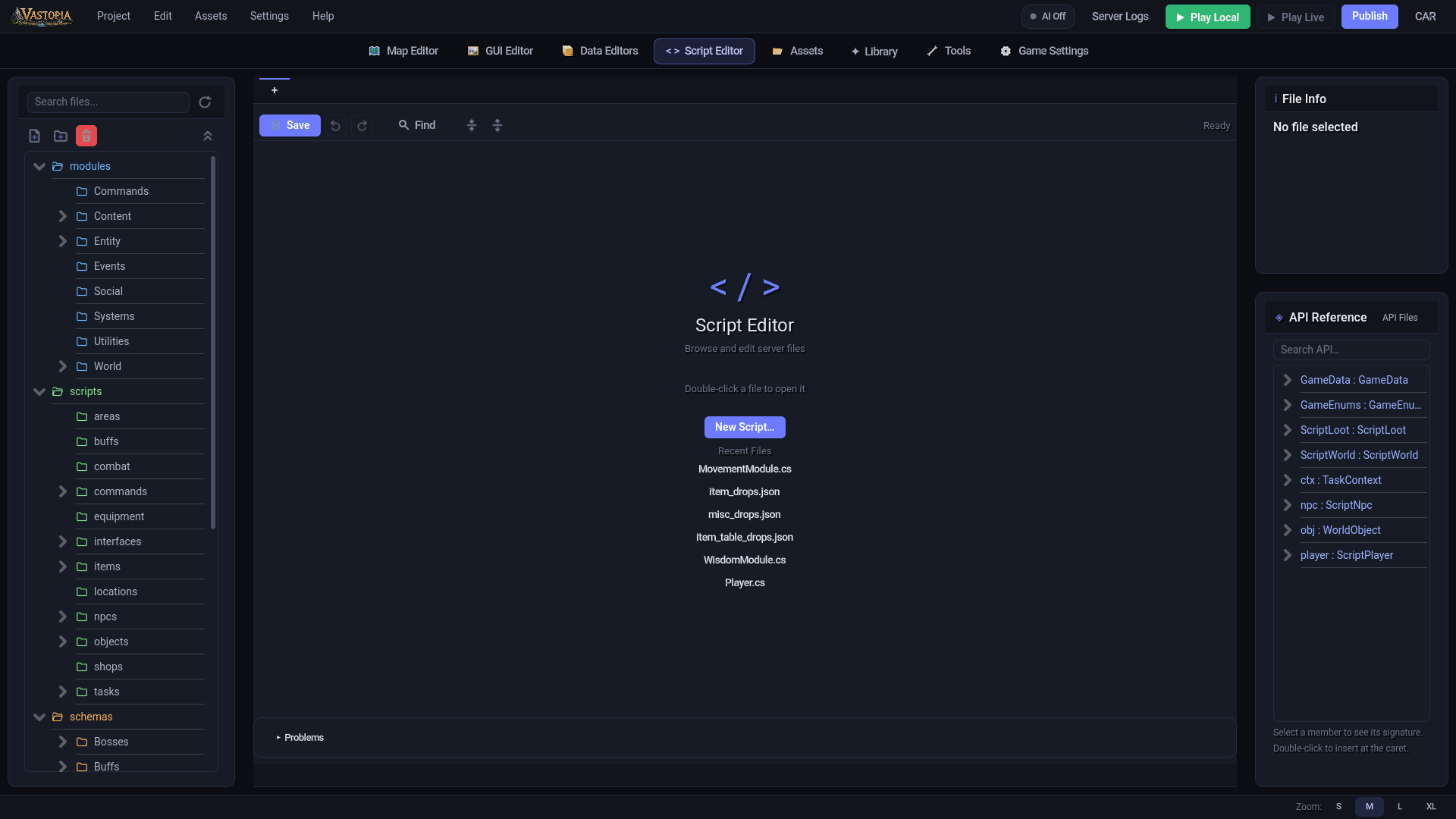
The Script Editor is the editor mode for everything under your project's server/ folder: C# scripts, modules and schema data tables. Open it with the Script Editor button in the editor's mode bar. It is a lightweight IDE tuned for the server's scripting API rather than a general C# environment: it knows which folders hold which kinds of script, offers completion and hover documentation for ScriptPlayer, ScriptWorld, GameData and the rest of the script API, flags structural mistakes as you type, and edits schema tables as grids instead of raw JSON.
If you prefer a full IDE, you can edit the same files in Visual Studio, Rider or VS Code; the Script Editor notices files changed on disk and reloads clean buffers. See IDE setup for IntelliSense outside the editor.
Layout#
The mode is split into three columns.
Left: the file tree. A Search files... box filters the tree by name, with a Refresh button beside it to rescan the folder from disk. The toolbar beneath holds New Script, New Folder, Delete and Collapse All. The tree lists server/ with modules, scripts and schemas first and expanded by default, their folder icons tinted blue, green and orange. Build and tooling noise is hidden: data, obj and bin folders, dot-prefixed folders such as .ide, and files ending in .g.cs, .csproj, .props, .targets or .sln. Inside schemas, a folder containing a <name>.json matching its own name is shown as a single schema entry rather than a folder.
Single-click a file to see its details in the right column; double-click to open it in a tab.
Center: tabs and the code area. A tab bar with a trailing + tab (which opens the New Script dialog) sits above a toolbar with Save, Undo, Redo, Find, Fold All and Unfold All, a View: switcher (Code / Data / Info) that appears only for schemas, and a status label. An error banner with a Copy button reports save problems such as invalid JSON. Below the code area is a Problems drawer listing live lint findings (double-click one to jump to its line) and a status bar showing the caret position, the file type and Saved or ● Unsaved changes. A breadcrumb bar shows the file's folder path; click a segment to select that folder in the tree. With nothing open, the center shows a welcome panel with a New Script… button and the project's Recent Files.
Right: File Info and the API panel. File Info shows the file name, its type (for example Script - C# Script or Schema Definition), the last-modified time, an Open Folder link that reveals the file in your OS file browser, and a Used By list of the NPCs, objects, items and interfaces bound to this script (double-click an entry to jump to it in the Data or GUI editor). Beneath it is the API browser, described under Autocomplete and the API panel.
Tabs#
- Every open file has its own buffer with its own undo history, so switching tabs never loses work.
- Drag tabs to reorder them. A modified tab shows
*in its title and its file is marked in the tree. - Right-click a tab for Undock, Close, Close Others, Close to the Right and Close All. Closing tabs with unsaved changes asks once for all of them with Save, Cancel and Don't Save.
- Open tabs are remembered per project and restored the next time you return to the Script Editor.
Ctrl+Popens a quick-open popup: type part of a file name and pressEnter.
Undocking a tab into its own window#
Double-click a tab, or choose Undock from its right-click menu, to move it into a floating window with its own toolbar (Save, Revert, Find, Fold All, Unfold All, Dock Back), find bar, and the same code editor with completion and linting. It stays open while you switch to other editor modes, so you can keep a script beside the Map Editor or the Data Editor. Closing a window with unsaved changes asks first. Schema tabs and the read-only API reference tabs cannot be undocked.
Editing code#
The code area is a C#-aware editor with syntax highlighting, line numbers, a fold gutter, automatic indentation, bracket and quote pairing, and line-length guides at 100 and 120 columns.
| Shortcut | Action |
|---|---|
Ctrl+S | Save the current file |
Ctrl+Z / Ctrl+Y | Undo / redo (per tab) |
Ctrl+F | Open the find bar; Ctrl+H opens it focused on Replace: |
Esc | Close the find bar |
Ctrl+P | Quick open by file name |
Ctrl+Space | Request completion (it also opens automatically after .) |
Ctrl+Click | Jump to an API symbol's reference tab |
Ctrl+/ | Toggle // comments on the caret line or selection |
Ctrl+D | Duplicate the current line |
Alt+Up / Alt+Down | Move the current line |
Ctrl+G | Go to line |
Ctrl+= / Ctrl+- / Ctrl+0 | Zoom the code font in, out, or back to 13 px (also Ctrl+mouse wheel) |
Zoom is shared by every code editor instance, docked or undocked, and persisted between sessions (8 to 32 px).
The find bar has Find: and Replace: fields, Case and Word checkboxes, < Prev, Next >, Replace and All buttons, and a live match counter. Matches are highlighted as you type.
Live linting#
C# files are checked for structural problems as you type, about half a second after you stop: unbalanced braces, parentheses and brackets, unterminated strings and similar typos. Offending lines get a red gutter marker and a red tint, hovering shows the message, and the Problems drawer lists them all. This is a structural check, not a compiler: it cannot tell you that a method does not exist. The compiler runs when you launch a Dev Test (see IDE setup).
Autocomplete and the API panel#
Completion and hover documentation come from a database of the server's real scripting API, generated from the server source, so what the editor offers is what compiles.
- Type
player.,npc.,obj.,ctx.,ScriptWorld.,GameData.,GameEnums.orScriptLoot.and the members of that type appear with their signatures and one-line summaries. Chains are followed (player.Skills.lists theScriptSkillsmembers), and the editor infers the types of local variables declared with a type,varorforeachsovar p = ...; p.works too. - With no dot, you get C# keywords, common types, a handful of .NET helpers, the API roots listed above and your local variables.
- Hovering an API symbol shows its full signature and summary. Typing
(after a known API method pops a signature hint above the caret;Eschides it. Ctrl+Clickon an API symbol opens that type as a read-only (API) reference tab, a generated C#-style listing of every member with its documentation, scrolled to the member you clicked.
The API panel in the right column offers the same database without leaving the keyboard: a Search API… box, a tree of types and members, and a doc pane that shows the signature of whatever you select. Double-click a member to insert it at the caret, double-click a type to open its reference tab, or pick a type from the API Files menu in the panel header.
Creating scripts#
- Click New Script in the tree toolbar, the + tab, or New Script… on the welcome panel. You can also right-click in the tree and choose New File….
- Pick a kind in the list on the left. The description, the Creates: destination and a live preview of the generated code update as you type.
- Enter a Name. For C# kinds the name must convert to a valid class name; spaces, dashes and underscores are turned into PascalCase (
goblin chiefbecomesGoblinChief). Create stays disabled until the name is valid. - Click Create. The file is written, the tree refreshes and the new file opens in a tab.
| Kind | Creates | Starts from |
|---|---|---|
| Command | server/scripts/commands/<Name>.cs | ICommandScript with Name, Description, Usage and Execute |
| NPC Script | server/scripts/npcs/<Name>.cs | NpcScript with an OnClick override |
| Object Script | server/scripts/objects/<Name>.cs | ObjectScript with an OnClick override |
| Item Script | server/scripts/items/<Name>.cs | ItemScript with an OnOption override |
| Interface Script | server/scripts/interfaces/<Name>.cs | IInterfaceScript with InterfaceNames, OnOpen, OnAction, OnClose |
| Task Script | server/scripts/tasks/<Name>.cs | TaskScript<ScriptPlayer> with TaskIds, OnStart, OnTick, OnStop |
| Combat Script | server/scripts/combat/<Name>.cs | NpcCombatScript with GetMaxHit and OnAttack |
| Module | server/modules/Systems/<Name>.cs | A bare class with Initialize() and HandleCommand() |
| Empty C# File | the selected folder | An empty class |
| JSON Data | the selected folder | { } |
| Schema | server/schemas/.../<name>/<name>.json + <name>_data.json | A table with an auto-increment id field |
The kind picks the folder, so the server will discover the script by its kind. If a file with that name already exists the status line says so and nothing is written.
New Folder (toolbar or right-click New Folder…) creates a folder inside the selected one, or at the root of server/ when nothing is selected. Remember that the server reads most script folders one level deep; subfolders only matter for modules/ and scripts/tasks/.
Renaming, duplicating and deleting#
Right-click a file or folder for Rename… (also F2), Duplicate, Copy Path, Reveal in Explorer and Delete; Delete is also in the tree toolbar.
- Rename works on files and folders. The file, or every file in the folder, must be closed first; the status line tells you if it is not. Keeping the extension is optional - a new name without one inherits the old extension. Schema entries cannot be renamed this way; their name is the table name in the Info view.
- Duplicate is available for plain files only and creates a copy beside the original.
- Delete asks for confirmation. Deleting a schema entry removes its whole folder (definition and data file).
- There is no drag-and-drop move in the tree. To move a script between folders, rename it into place from your OS file browser (use Reveal in Explorer) and click Refresh, or use the MCP
move_server_scripttool, which also reports any data file still pointing at the old path.
Saving and files changed elsewhere#
Save (or Ctrl+S) writes the active tab. Saving the project from the main window also saves every open script tab. Before overwriting, the editor compares the file's timestamp with the one it loaded: if the file changed on disk in the meantime, a File Changed on Disk dialog asks whether to Overwrite it with your version.
When you return to the Script Editor, and whenever you switch tabs, the file you are looking at is re-checked against disk. A file you have not modified is silently reloaded if an external tool changed it; a file with unsaved edits is kept, and the status line notes that it changed on disk. This is what lets you edit in an external IDE and in the Script Editor at the same time.
Editing schemas#
Open a schema entry and the center switches to a three-way View: toggle:
- Data (default) is a grid of the table's rows. Use + Add Row, Duplicate and Delete, search rows with Search rows..., and drag rows to reorder them. Boolean fields are checkboxes. A
jsonfield that holds an array opens a Row Detail page where each array item is a card (or a row, via the card/row toggle) with its own add, delete and multi-select controls; < Back returns to the table. - Code shows the same rows as raw JSON in the code editor. Switching back to Data parses it; invalid JSON shows the error banner and keeps you in Code until it is fixed.
- Info edits the table definition: the field list with Name, Type, Length, Primary, Unique, Nullable, Default and Auto Inc columns, plus + Add Field, - Remove, Move Up and Move Down. Field types are
int,string,float,bool,text,datetime,jsonandenum. Selecting ajsonfield reveals a Sub-fields panel where you define the fields inside that array.
Save writes both files at once: the definition to <name>.json and the rows to <name>_data.json. Rows are what the server reads with GetData("<name>").
To create a table, choose Schema in the New Script dialog. The name is lower-cased and spaces become underscores.
With AI (MCP)#
Everything the Script Editor does with files is available to an agent: write_server_script creates a script from the same base-class templates (or a custom body), read_server_script and list_server_scripts inspect what exists, move_server_script and delete_server_script reorganise, and set_schema_row / get_schema_data edit schema tables. Files written by the MCP appear in the tree after Refresh, or automatically the next time you return to the editor mode.