
VFX
Build effects from particles, primitive meshes and animated models, preview them, and register them by id in vfx_database.json for combat and scripts.
8 min read
What a VFX is#
A VFX (visual effect) is a small self-contained 3D scene - sparks, a healing glow, a magic bolt impact, a summoning circle with an animated model in it - that the game spawns for a moment and then removes. Every effect has a numeric vfx_id, a name and a scene file. Nothing else about it lives in data: the particles, meshes, colors and animation are all inside the scene.
Effects are referenced by id from:
- Items - a Ranged or Magic weapon's Hit GFX ID and Projectile ID (see Items).
- NPC combat - boss attacks carry an attacker graphic and a victim graphic.
- Scripts -
player.PlayGraphic(id)plays an effect at the player,player.PlayGraphicAt(id, x, y, z)at a world position (see NPC, object and interaction scripts).
VFX are client-only data: the server never opens the scene, it just sends the id.
Create an effect#
- In the Data Editor, open the VFX tab and click + New VFX, or click the VFX card on the Create New page. Optionally drop a model (
.glb,.gltf,.fbx,.obj) on the card or drag one from the model shelf - a model given here becomes the effect's first model node, already imported, so you can start from an animated mesh. - Type a Name and leave the ID on the next free number unless you are filling a gap. A template from Start from a template or a record from Existing: can pre-fill the effect.
- Press Finalize VFX. The effect opens in its own tab.
- Build the node graph (below), press Play to check it, then Save VFX (or
Ctrl+S).
Saving writes two things:
- the scene to
assets/vfx/<name>.tscn, where<name>is the effect name lowercased with spaces turned into_; - the registry entry in
assets/data/vfx_database.json.
The VFX editor#
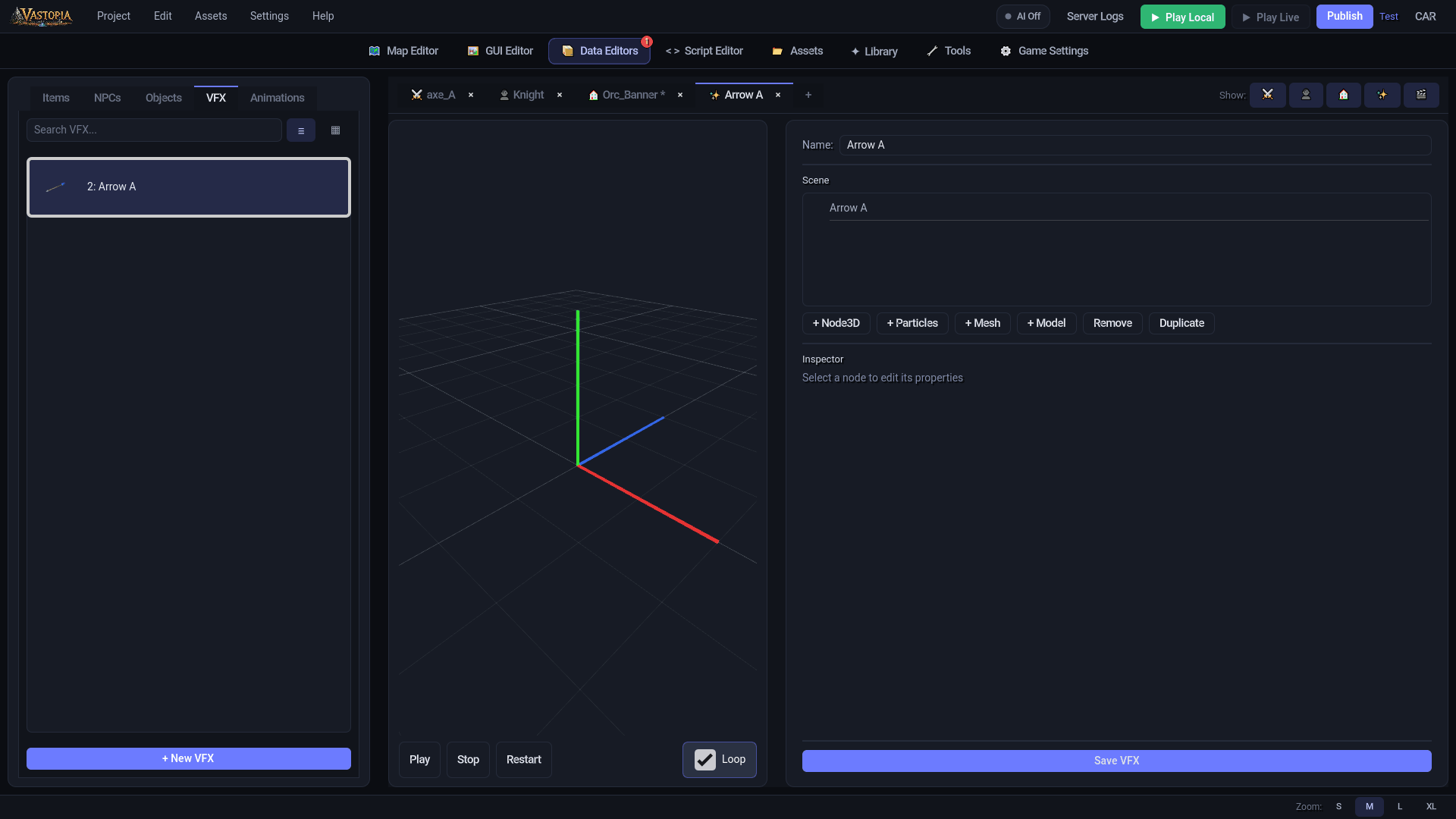
An open effect shows the 3D preview on the left and, on the right, the Name field, the Scene tree, the node buttons, the Inspector for the selected node, and Save VFX.
Preview and playback#
The preview viewport draws a 1 m grid with red/green/blue axis lines at the origin and a small axis marker on whichever node is selected. Left-drag orbits around the effect, right-drag looks around, middle-drag pans, and the wheel zooms. Nothing in the viewport is draggable; positions are typed in the Inspector.
| Control | What it does |
|---|---|
| Play | Starts every particle emitter and every model clip in the effect. |
| Stop | Stops them. |
| Restart | Restarts the emitters and clips from the beginning. |
| Loop | On (the default): emitters run continuously and model clips loop. Off: every emitter becomes one-shot and clips play once. This toggle rewrites the One Shot and Loop settings of every node at once, so use it as the "is this a burst or an aura" switch and then fine-tune per node. |
A new particle node inherits the current Loop state, and starts emitting only if the preview is already playing.
Scene tree and node types#
The Scene tree lists the effect's nodes under a root named after the effect. Adding a node puts it under the selected node, or at the root when nothing is selected, so you can build hierarchies: a container that moves, with emitters and meshes riding along inside it. Drag a node onto another to make it a child, or between rows to reorder siblings; a node can never be dropped onto itself or its own descendants. Right-click a node for Duplicate, Delete, Add Node3D, Add Particles, Add Mesh and Add Model; Ctrl+D duplicates the selection with all its children.
| Button | Node | What it is for |
|---|---|---|
| + Node3D | Empty container | Grouping and nesting. Move or scale the group to move everything under it. |
| + Particles | GPU particle emitter | Sparks, smoke, magic, dust. Starts as 50 upward-moving quads with a 2 s lifetime and light gravity. |
| + Mesh | Primitive mesh | Beams, bolts, shells, glows. Starts as a red, strongly emissive cone (a cylinder tapering from 0.1 to 0.01) turned to point along the Z axis like a projectile. |
| + Model | Imported 3D model | An asset from your library, optionally playing one of its own animation clips. |
| Duplicate | - | Copies the selected node and its children as <name>_copy. |
| Remove | - | Deletes the selected node and its children. |
Node names are made unique within their parent by appending a number.
Inspector#
Every node has Name, and under Transform its Position, Rotation (degrees) and Scale. The rest depends on the type.
Particles
| Section | Fields | Range |
|---|---|---|
| Particles | Amount | 1-10000 |
| Lifetime (seconds) | 0.1-60 | |
| One Shot | on/off | |
| Speed Scale | 0.1-10 | |
| Explosiveness | 0-1 (1 = everything at once) | |
| Process Material | Direction (vector), Spread (0-180 degrees), Velocity Min / Velocity Max (0-50), Gravity (vector), Scale Min / Scale Max (0.01-10), Color | |
| Draw Pass | Mesh: Quad, Box, Sphere, Cylinder |
Mesh
| Section | Fields |
|---|---|
| Mesh | Shape: Cylinder, Sphere, Box, Quad. Cylinder exposes Top Radius, Bottom Radius, Height; Sphere exposes Radius; Box exposes Size. |
| Material | Albedo, Emission on/off, and when on Emission Color and Emission Strength (0-50). |
Model
| Field | Notes |
|---|---|
| Model: | An asset-library picker (3D models only). Until a model is chosen the Inspector says so; you can also drag a .glb/.gltf/.fbx/.obj straight onto the preview to import one through the Import Model screen and add it as a model node in one step. |
| Clip: | (None) or one of the model's own animation clips. A freshly chosen animated model starts on its first clip and begins playing so you can see it. Shown only when the model has clips. |
| Loop: | Whether the clip repeats. |
| Speed: | Playback speed, 0.1-10. |
A model node shows up in the tree as a single entry named after the asset; the model's meshes and bones are hidden from the tree because they belong to the asset, not to the effect. The whole model is moved, rotated and scaled through the wrapper node's Transform, and you can parent emitters under it.
The chosen clip is saved as the model's autoplay animation, which is how it plays in game without the client knowing anything about VFX models. The preview camera frames a model the first time a node receives one; swapping the model of an existing node leaves your view alone.
How effects behave in game#
Understanding the client's spawn rules helps you design effects that look right without babysitting:
- Particles are force-started on spawn. Whatever
emittingstate the scene was saved with, the client restarts every emitter the moment the effect appears. You do not need to leave Play running before saving. - Effects are transient. The client removes an effect after the longest one-shot emitter's lifetime (divided by its speed scale), capped at 5 seconds, or after 5 seconds when no emitter is one-shot. An animated model extends that to one full pass of its autoplay clip, up to 30 seconds. A looping aura is therefore still cut off after 5 seconds; for persistent effects, trigger them again from a script.
- Attached effects (combat hits on an NPC or player) are parented to the entity at a height offset - combat sends the height in hundredths of a unit - and can be delayed by a number of milliseconds; both particles and clips are held back until the delay elapses. Positional effects (
PlayGraphicAt, projectile impacts) are placed in the world at the given position. - The client loads each effect's scene once per session and reuses it for every later spawn of that id.
The self-contained scene rule#
A saved VFX scene must not reference any other file. The editor enforces this at save time, but it is worth knowing why, especially if you ever hand-edit a scene or build one outside the editor:
- The
.tscnis packed into your game's content pack exactly as written. An external reference would point at a path on your machine. - Models are re-encoded to
.scnwhen you publish, so even a project-relative reference to a.glbwould not resolve in the shipped game.
On save the editor therefore copies every particle material, mesh, skin and animation library that is still backed by a file into the scene itself, clears each node's scene-file link, and bakes the chosen model clip as autoplay. The result is a scene the client can instantiate directly with no knowledge of where the pieces came from. Keep to that rule if you write a scene by other means: no ext_resource entries.
Thumbnails#
When you save, the editor snapshots the preview (grid and gizmo hidden) into a 128x128 PNG under assets/vfx/.thumbs/ and shows it next to the effect in the VFX list; rows without a snapshot get a lazily rendered thumbnail of the saved scene.
Right-click menu#
Right-click an effect in the VFX list for Rename, Duplicate, Save as Template and Delete (multi-select with Shift/Ctrl). Change ID is disabled for VFX. Deleting removes the entry from vfx_database.json; the scene file under assets/vfx/ stays on disk.
Reference: vfx_database.json#
assets/data/vfx_database.json is a client file wrapped in a vfx array:
{
  "vfx": [
    {
      "vfx_id": 1,
      "name": "Heal Sparkle",
      "scene_path": "res://assets/vfx/heal_sparkle.tscn",
      "scalex": 1.0,
      "scaley": 1.0,
      "scalez": 1.0
    }
  ]
}
| Field | Type | Notes |
|---|---|---|
vfx_id | int | Identity; referenced by items, boss attacks and scripts. Written as an integer. |
name | string | Display name. |
scene_path | string | res://assets/vfx/<name>.tscn. An entry whose scene is missing at this path logs an error when the client loads the registry and is refused at spawn time. |
scalex, scaley, scalez | float | 1.0 for anything the editor creates - it has no control for them, though a value set by define_vfx survives a save. The current client parses but does not apply them. Scale nodes inside the scene instead. |
A new project starts with an empty registry ({"vfx": []}).
With AI (MCP)#
define_vfx upserts a registry entry by vfx_id (name, optional scene_path defaulting from the name, optional scale) and can also generate the particle scene from an archetype - burst, impact, stream, aura or swirl - with per-call overrides such as amount, lifetime, one_shot, explosiveness, color, direction, spread, velocity, gravity and scale. Effects that need meshes or animated models are built in the editor and then registered or edited with define_vfx.