
Data Editor Overview
How the Data Editor manages Items, NPCs, Objects, Animations and VFX, the create-and-finalize flow, and how definitions export to client and server.
7 min read
What the Data Editor manages#
The Data Editor is where you define the things in your game that are not maps or interfaces: the items players carry and equip, the NPCs they fight and talk to, the objects they click on in the world, the animation rigs those characters play, and the visual effects scripts can trigger. Maps only place NPCs and objects; the definitions themselves live here, so changing a definition changes it everywhere it is used.
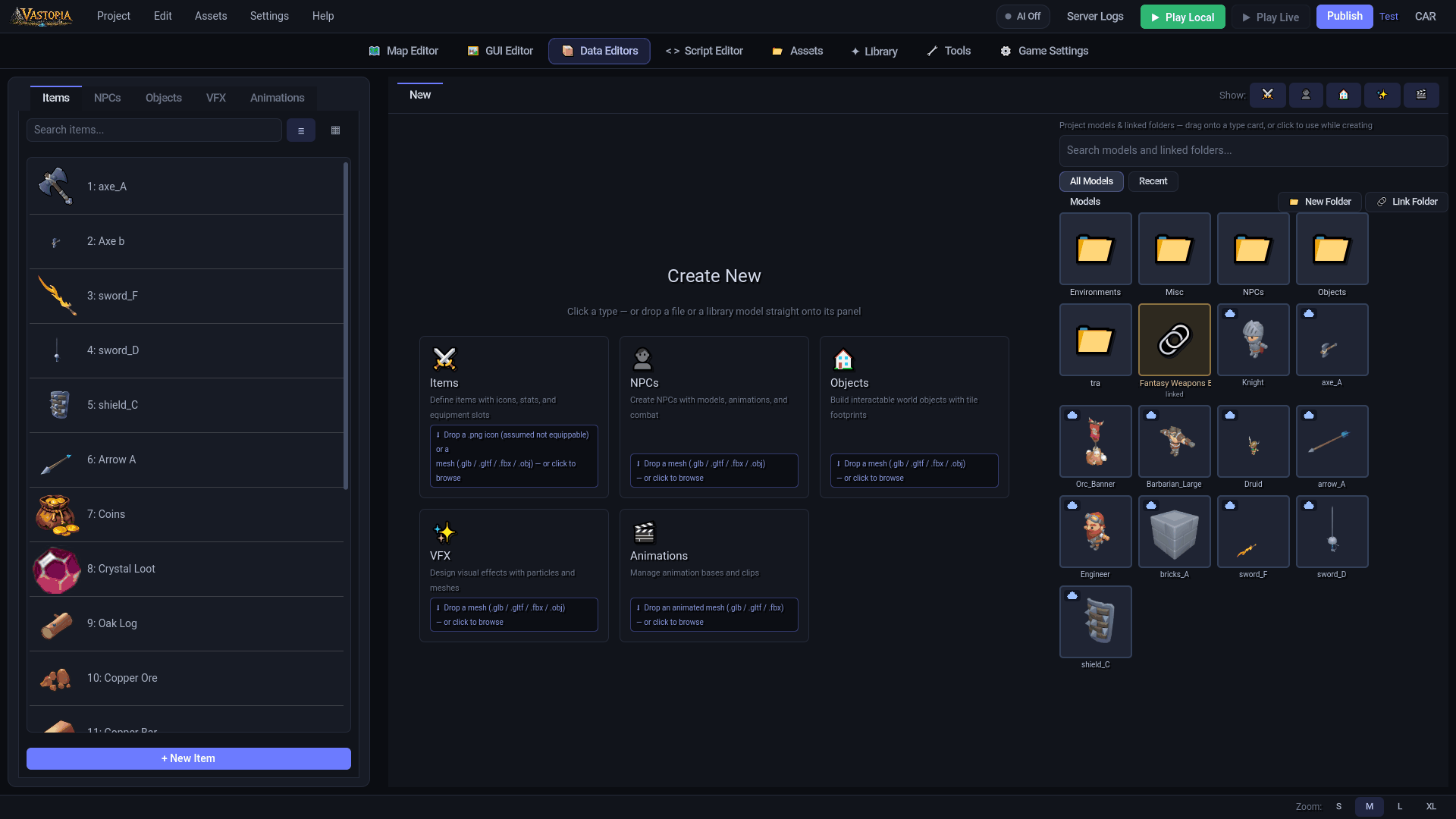
Open it with the Data button in the top bar. The editor has two halves:
- Left panel - five tabs: Items, NPCs, Objects, Animations, VFX. Each tab has a search box, a list/tile view toggle, and a create button (+ New Item, + New NPC, + New Object, + New Anim Base, + New VFX). The editor remembers which tab you were on when you come back.
- Right panel - either the Create New page (when no record is open) or a tab strip of open records. A + tab at the end of the strip returns you to Create New. A Show: row of toggles filters which record types appear in the strip.
| Tab | What it defines | Read more |
|---|---|---|
| Items | Inventory items, equipment, consumables, icons and stats | Items |
| NPCs | Characters with models, animations, options, combat and drops | NPCs |
| Objects | Clickable world objects with a tile footprint and actions | Objects |
| Animations | Animation bases (a skeleton plus its clips) shared by NPCs | Animations and animation bases |
| VFX | Particle/mesh/model effect scenes referenced by id | VFX |
Opening, saving and closing records#
- Open: double-click an entry in a left-panel list. The record opens in its own tab; double-clicking the same entry again focuses the existing tab instead of opening a second one.
- Save: every sub-editor has a save button in its header (Save Item, Save NPC, Save Object, Save VFX, Save Animation Base).
Ctrl+Ssaves the active tab. A tab with unsaved changes shows a*after its name. - Close: click the close icon on a tab, or right-click a tab for Close Tab and Close Other Tabs. The same menu offers Save as Template.
- Undo/redo: while a record tab is active,
Ctrl+Z/Ctrl+Ystep through that tab's own form edits. On the list view they apply to structural operations such as deletes.
Right-click menu on a list entry#
Right-click any Items, NPCs, Objects or VFX entry for:
| Menu item | What it does |
|---|---|
| Rename | Changes the display name in both client and server files. The numeric id is untouched. |
| Change ID | Moves the record to a different numeric id and rewrites every reference to it: drop tables, recipes, shops, loot_tables.json, map regions.json, server spawn files and task triggers. The dialog says so before you confirm. |
| Duplicate | Copies the record (and, for items, its icon files) under a new name and a new id. |
| Save as Template | Stores the record as a reusable starting point (see below). |
| Open Script | Jumps to the record's bound server script in the Script Editor. |
| Delete | Removes the record from both files. Shift/Ctrl multi-select to delete several at once. Items also lose their rendered icon PNGs. |
Animation bases have their own menu with Delete Animation Base; the project's default humanoid base is protected and cannot be deleted.
The create and finalize flow#
Creating a record is a two-step page rather than an empty form, so the model work happens before the record exists.
- On Create New, click a type card (Items, NPCs, Objects, VFX, Animations) - or drop a file straight onto the card. Cards accept a mesh (
.glb,.gltf,.fbx,.obj); the Items card also accepts a.png/.jpg/.webpicon. You can also drag a model from the model shelf on the right (the same Models view as the Assets tab, including linked folders) onto a card, or click click to browse. - A dropped
.glb/.gltffirst opens the Import Model screen: set the Name, a cloud Category, Max Texture Size, choose Original or Bake Textures, and untick any scene nodes you want left out. Import continues; Cancel leaves the page untouched. Models you pick from the shelf or asset library skip this screen because they were processed when first imported. - The create page shows a Name field, an ID dropdown, a Start from a template row (Blank, your saved templates, and a drop box that turns a dragged list entry into a new template), and an Existing: dropdown to copy a current record's fields. With a mesh pending, a 3D preview sits in the middle; NPCs and objects get a right-hand Animations column and a Size (tiles) block under the viewport, and items get an equipment-slot bar over the preview.
- Press Finalize Item / Finalize NPC / Finalize Object / Finalize VFX / Finalize Animation. The pending model is imported with the preview's current bake and placement, the record opens in a tab, and it auto-saves as soon as it is complete. < Back to types abandons the page.
IDs are allocated, never invented#
Items, NPCs, objects and VFX are identified by a positive integer. The ID dropdown on the create page lists every unused id below the current maximum plus the next sequential id, which is selected by default. You should never type an id by hand anywhere else:
- The id is the join key between the client file and the server file, between maps and definitions, and between player saves and inventories. Renaming a record never changes it.
- If a new record would collide with an existing id, the editor reassigns it to the next free one and logs a warning.
- Animation bases use a string id derived from the name (lowercased, spaces replaced with
_), and each clip inside a base has its own integer id that is only meaningful together with that base.
Use Change ID when you genuinely need a record to move; it is the only path that keeps every reference consistent.
Dual export: client file and server file#
Most definitions are written to two files at once. The client file carries what the player's game needs to draw the thing; the server file carries what the game needs to enforce. You edit one form; the editor splits it on save.
| Type | Client (assets/data/) | Server (server/data/) |
|---|---|---|
| Items | items.json - name, description, model and icon paths, slot, equip mode, option labels, equipment stats (for display) | items.json - stackable/tradeable/droppable flags, option ids and scripts, script bindings, equipment stats, requirements, custom properties |
| NPCs | npcs.json - model, animation base and clip ids, transform, clickbox, option labels, combat level | npcs.json - option ids (with dialogue links), script path, server animation map, full combat block, custom properties |
| Objects | objects.json - model, footprint, transform, clickbox, action labels, idle clip, minimap flag | objects.json - footprint, collision type, interact distance, action ids, script path, custom properties |
| Animations | animations.json - bases, skeleton paths, clips | - |
| VFX | vfx_database.json - id, name, scene path, scale | - |
Two derived server files are rebuilt automatically:
server/data/script_bindings.json- regenerated whenever an item, NPC or object is saved, mapping entity ids to the scripts bound in their Script fields (sectionsitems,equipment,npcs,npc_combat,objects).server/data/property_manifests.json- the list of custom Properties available per entity type, updated when you add a property in any sub-editor.
When you publish, model paths in the client files are rewritten from .glb/.gltf to the packed .scn form and float-encoded ids are normalized back to integers. You do not need to do anything for that; see Models.
Custom properties#
Every item, NPC and object has a Properties tab. Besides the built-in fields it lists the custom properties declared for that entity type, each with a checkbox to override the default and a typed control. + Add Property opens a small dialog: Property Name, Data Type (bool, int, float, string) and Default Value. New properties become available to every record of that type and are saved under properties in the server file, where scripts can read them.
A new project starts with value and weight for items, attackable for NPCs, and interactable and render_on_minimap for objects.
With AI (MCP)#
The same definitions can be authored without the editor open. The MCP tools create_item / update_item, create_npc / update_npc, create_object / update_object, define_animation_base / define_animation, and define_vfx write both client and server files and allocate ids the same way the editor does; list_items, get_item, list_npcs, get_npc, list_objects, get_object and list_animations read them back, and delete_entity removes a record. Every write tool accepts dryRun: true to preview the exact file changes first. See AI-Accelerated Creation.