
Objects
Define clickable world objects with a model, tile footprint, collision, interact distance, right-click actions and a script, and how changes reach every map.
8 min read
What an object is#
An object is a piece of the world players can click on: a chest, a door, a tree to chop, a ladder, an anvil. An object definition is the reusable record - model, footprint in tiles, collision, right-click actions, script - identified by a numeric object_id. Maps place instances of it; the footprint, model and actions are never copied into a map, so every placement reads them from the definition. Purely decorative models that nobody interacts with do not need a definition at all: paint them as props instead (see Props and model painting).
On save the definition is split into two files. The player's game reads assets/data/objects.json to draw the model, show the right-click menu and loop an idle animation; the server reads server/data/objects.json to block movement, decide how close a player must stand, and dispatch actions to your script. See the Data Editor overview for the shared list, create and save flow.
Create an object#
- In the Data Editor, open the Objects tab and click + New Object, or click the Objects card on the Create New page. Drop a
.glb,.gltf,.fbxor.objon the card, drag one from the model shelf, or pick a model from the asset library. A model is required - an object cannot be saved without one. - Type a Name and leave the ID on the next free id.
- Under the preview, set Size (tiles) with the Width: and Depth: spin boxes (1-20 each). The preview floor shows the footprint.
- If the model contains animations, the Animations column on the right offers a single Idle: slot. Drag a clip from the Clips list onto it (the editor pre-fills a clip named idle/stand/breath, or the first clip) or clear it for a static object. The play buttons preview clips; Stop halts them.
- Press Finalize Object. The model is imported, the object opens in a tab and auto-saves.
The object editor#
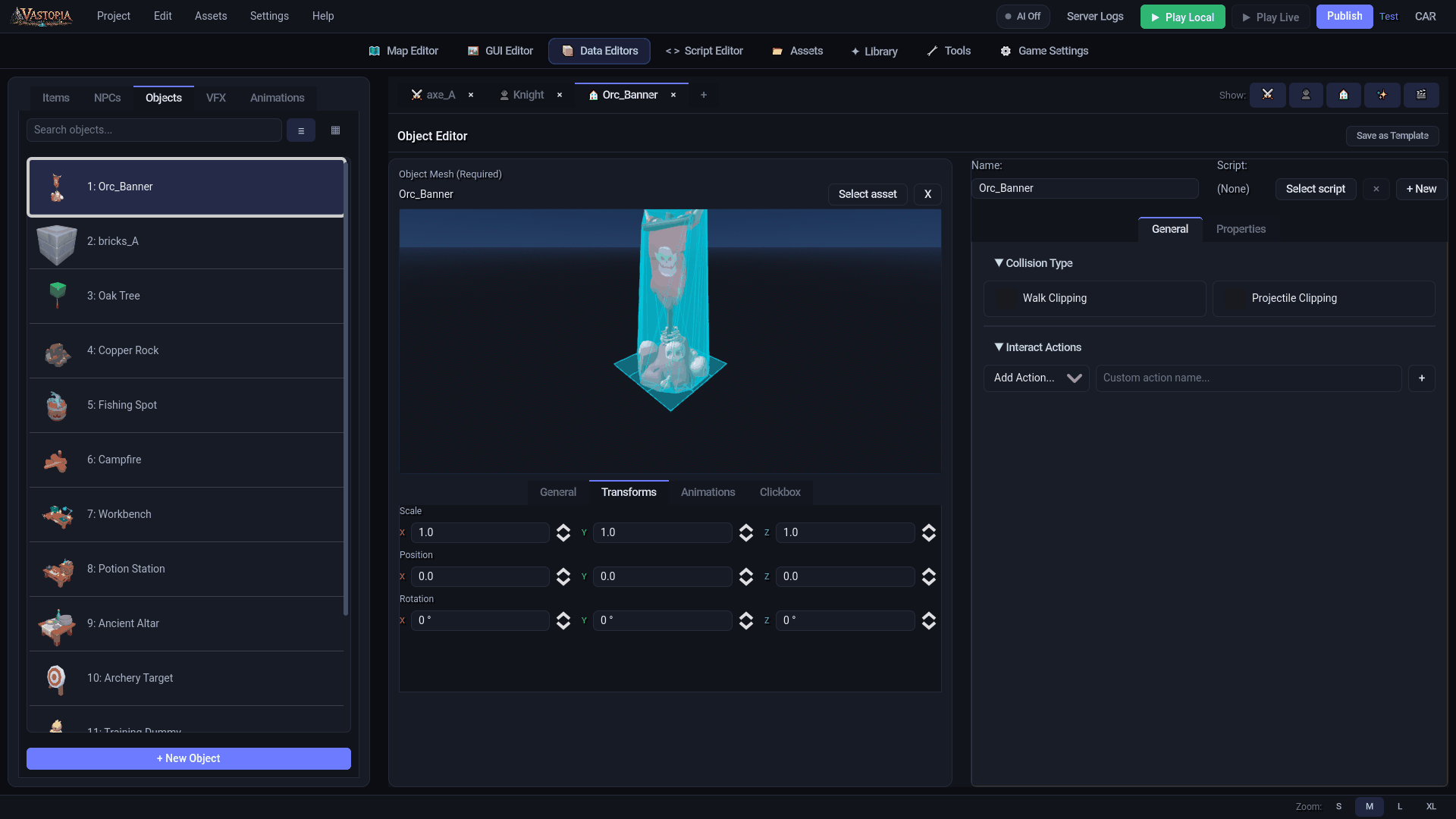
An open object shows the Object Mesh (Required) picker and a 3D preview on the left (left-drag orbits, right-drag pivots, middle-drag pans, wheel zooms; a tile grid under the model shows the footprint), with four tabs beneath: General, Transforms, Animations, Clickbox. The right side has Name: and Script: above two tabs: General and Properties. Save Object in the header (or Ctrl+S) writes both files; Save as Template stores the record for reuse.
Dropping a model file onto the preview opens the Import Model screen (name, category, texture cap, Original or Bake Textures, and per-node include checkboxes); Import registers the model in the asset library tagged as an object and assigns it, Cancel leaves nothing behind. A .fbx or .obj skips that screen and lands in the older preview popup with Accept / Cancel, converting through Blender on the way. A file that is already a library asset is reused, never imported twice.
General tab (left): footprint and reach#
- Tile Footprint - W and D (1-20). One tile is 0.5 m, as the hint under the spin boxes says. The footprint is anchored on the object's south-west tile and extends east and north; it is what the server blocks and what the Map Editor highlights when you place the object (see Coordinate system).
- Interact Distance (1-20 tiles, default 2) - how far a player may stand from the nearest footprint tile and still use the object, measured as Chebyshev distance (diagonals count as one). A player who clicks from further away walks to exactly that distance first, then the action fires.
Transforms tab#
Scale X/Y/Z (0.01-10), Position X/Y/Z (-10 to 10) and Rotation X/Y/Z (-180 to 180 degrees) adjust how the model sits inside its footprint. Each group has a reset arrow once a value leaves its default. Use these to center a model whose origin is off, or to shrink an oversized asset; the per-placement rotation on a map is separate.
Animations tab#
Object Idle Animation - pick an Idle clip: from the clips inside the model, or (None) for a static object. The clip loops automatically in game. Play Idle and Stop preview it.
Clickbox tab#
The region players click to target the object. Shape: Box, Capsule or Mesh; new objects default to Mesh (the model's own shape) with Show Clickbox on. Auto-Fit wraps a box or capsule around the model; Size, Offset and the capsule Radius: / Height: fine-tune it.
Name and Script#
Name: is the display name. Script: binds a server script from server/scripts/objects/; + New opens the script creation dialog with OnOption (checked by default), OnSpawn and Process (every tick). The open-in-editor button jumps to the Script Editor. Saving also regenerates server/data/script_bindings.json, which is how the server learns which compiled script belongs to which object id.
General tab (right): Collision Type#
Two checkboxes set how the object behaves physically on the server:
| Walk Clipping | Projectile Clipping | Saved as | Effect |
|---|---|---|---|
| off | off | obstacle | Blocks movement and combat line of sight (crates, boulders, stumps). |
| off | on | low_fence | Blocks movement, but arrows and spells pass over it (fences, railings). |
| on | any | ground_deco | Fully passable; movement and line of sight both clear (puddles, floor markings). |
The server understands three more - wall (identical to obstacle), door (blocks movement and line of sight while closed) and transparent (blocks movement but lets line of sight through) - but the checkboxes cannot produce them, and opening such an object here collapses it to the nearest pair on the next save: wall and door become obstacle, transparent becomes low_fence.
General tab (right): Interact Actions#
The right-click menu players see. Use the Add Action... dropdown for Examine, Open, Close, Search, Use, Take, Enter or Unlock, or choose Custom..., type into Custom action name... and press Enter or +. Rows can be dragged to reorder, show a status dot once a script exists, and have Edit Method and remove buttons. Edit Method creates server/scripts/objects/Object_<id>.cs with one if (option == ...) block per action if nothing is bound yet, binds it, and opens it at OnOption; actions added afterwards are appended to the script.
What happens when a player picks an action:
- The player walks into Interact Distance and turns to face the object.
- Gameplay modules get the first look - the loot system resolves object drop tables and item-on-object triggers here (see Loot tables), and quests watch for their objectives.
- Your object script's
OnOptionruns if a script is bound; returningtruemarks the click handled. - Otherwise task triggers from the Task editor get the click.
An action with no handler does nothing, so Examine text, opening doors, chopping trees and the rest are all yours to write; see NPC, object and interaction scripts.
Properties tab#
Description: free text, then the custom properties declared for objects - a new project ships interactable (default off) and render_on_minimap (default on) - and + Add Property. Overrides are saved under properties in the server file for scripts to read. render_on_minimap is special: it is also written to the top level of the client file, and the player's game uses it to decide whether the object gets a dot on the minimap.
Editing an object that is already placed#
Because maps reference definitions by id, saving here changes every placed instance at once: a wider footprint blocks more tiles on every map, a new model swaps the visual everywhere, a new action appears on every right-click menu. Open maps in the Map Editor refresh immediately when you save, so you can check the result without reopening them. Remove an action and any script branch for it simply stops being reachable.
The numeric id is the link. Rename keeps it; Change ID (right-click the list entry) moves the record and rewrites map regions.json files and server spawn files so placements follow. Delete removes the definition from both data files; remove the placements from your maps as well, since a placement pointing at a missing id has no definition to draw.
Reference: objects.json#
Client - assets/data/objects.json#
| Field | Type | Notes |
|---|---|---|
object_id, name, description | int, string, string | Identity and display text. |
model_asset_id, model_path | string | The model (res://assets/...). Rewritten to .scn at publish; see Models. |
tile_width, tile_depth | int | Footprint, 1-20. |
interact_actions | string[] | Labels only. |
offset_x/y/z, rotation_x/y/z, scale_x/y/z | float | Model transform inside the footprint. A uniform scale copy of scale_x is written for older readers. |
clickbox | object | shape_type (box, capsule, mesh), size, offset, capsule_radius, capsule_height. |
idle_animation | string | Clip name that loops in game, or "". |
render_on_minimap | bool | Minimap dot. |
Server - server/data/objects.json#
| Field | Type | Notes |
|---|---|---|
object_id, name | As above. | |
collision_type | string | obstacle, low_fence or ground_deco from the editor; the server also understands wall, door and transparent. |
tile_width, tile_depth | int | Footprint used for movement blocking and range checks. |
interact_distance | int | Tiles, default 2. |
interact_actions | object[] | {id, label}. |
script_path | string | Project-relative object script; mirrored into script_bindings.json under objects. |
properties | object | Custom property overrides. |
The server reads these integers strictly; the editor normalizes any 2.0-style values back to integers whenever it rewrites the file, so a hand edit that slips in a decimal is repaired on the next save.
With AI (MCP)#
create_object writes both files and allocates the id - pass model_asset_id, tile_width / tile_depth, interact_actions as labels, collision_type, interact_distance and optionally script_path. update_object changes only the fields you pass and leaves a hand-tuned clickbox alone. place_object_on_map puts an instance on a map and re-derives the server spawn file; list_objects and get_object read definitions back. Every write accepts dryRun: true. See AI-Accelerated Creation.