
Dialogue
Build branching NPC conversations as node graphs with text, choices, conditions, actions and player input, and attach them to an NPC's Talk-to option.
9 min read
What dialogue does#
A dialogue is a conversation graph a player walks through when they talk to an NPC. Each node is a line of text, a set of choices, a condition that branches, an action that changes the world, or a prompt for typed input. The Dialogue Editor in the Tools editor lets you lay these nodes out visually, wire them together by dragging, and save the result as data that the bundled dialogue module runs on the server. No code is compiled: conditions and actions are short script snippets drawn from a fixed vocabulary.
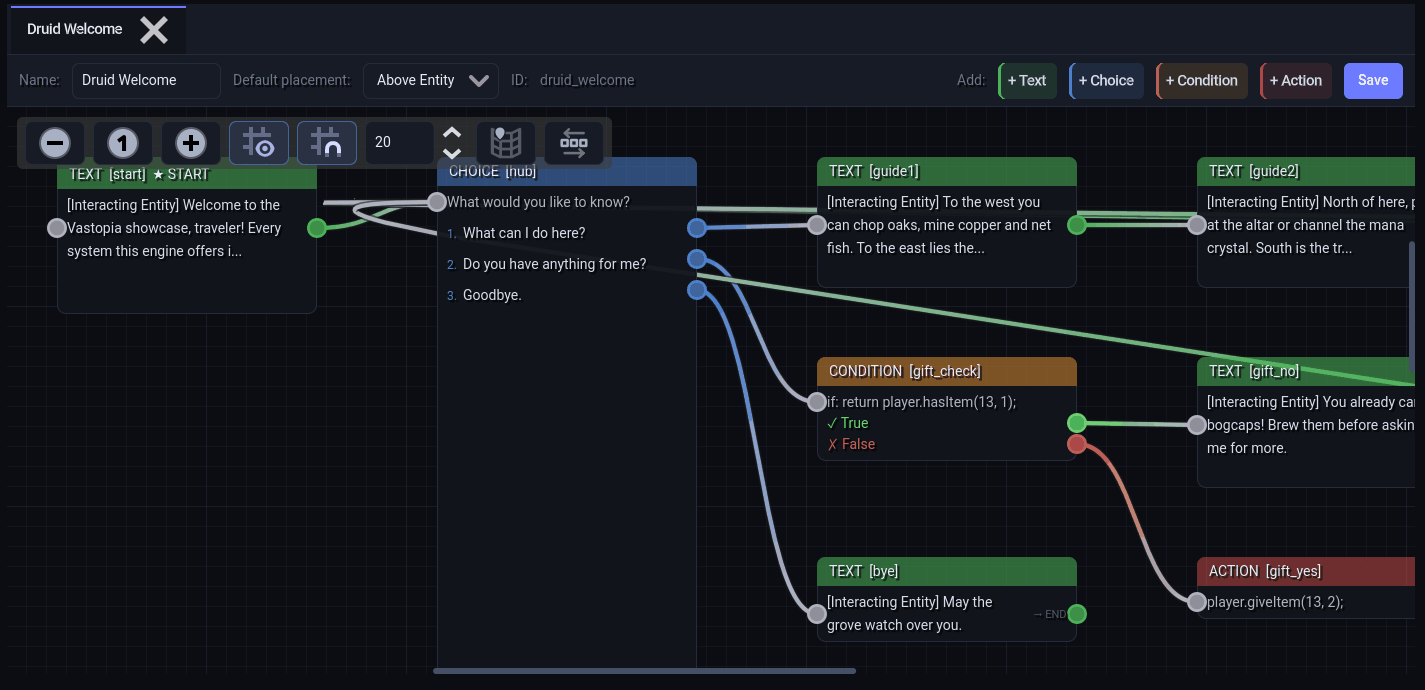
Use dialogue for anything a player reads or answers: greetings, shopkeepers, quest givers, riddles, name prompts. Dialogue is also the branching layer for tasks and quests, which are themselves linear: a dialogue can start a quest, check which stage a player is on, and say something different each time.
Opening the tool#
- Click Tools in the top bar, then the Dialogue Editor card.
- The icon rail on the left switches between tools; Main Menu returns to the hub. Leaving the tool saves unsaved dialogues automatically.
The tool has three areas:
- Dialogues (left) — every dialogue in the project, shown as
Name (id), with a Search dialogues... box that matches names and ids, and + Add Dialogue. Right-click an entry for Duplicate, Rename or Delete. - Graph (center) — open dialogues appear as tabs (right-click a tab for Close Tab, Close Other Tabs, Close All Tabs). Above the graph is a header row with Name:, Default placement:, the read-only ID:, an Add: group of + Text, + Choice, + Condition and + Action buttons, and Save. There is no button for an input node — add those from the graph's right-click menu.
- Node Properties (bottom) — the inspector for the selected node. It reads "Select a node to edit its properties" until you click one.
Create a dialogue#
- Click + Add Dialogue. In the New Dialogue window enter a Dialogue ID (unique, no spaces) such as
guard_greetingand a Display Name, then click Create. The id cannot be changed afterwards; the name can. A new dialogue opens with one text node,node_1, that says "Hello!" and is marked as the start. - Choose a Default placement: Chatbox shows lines in a panel over the chatbox with the speaker's name, with clickable choices and input; Above Entity shows speech bubbles and choices above the NPC's or player's head. Each node can override this.
- Add nodes from the Add: buttons (they land in the middle of the view), or right-click empty graph space for the full list: Text Node, Choice Node, Condition Node, Action Node, Input Node and Reroute Point.
- Wire nodes by dragging from an output port on the right side of a node to the input port on the left of another. Drag a port onto empty space and the add menu pops up; the node you pick is created there and connected for you. Drag a wire away from the input port it ends at to disconnect it. An unconnected output shows → END, which closes the conversation.
- Click a node and edit it in Node Properties. Every node shows its type, its id, a Set Start button (hidden on the node that is already the start) and Delete. The start node's title carries a START marker in the graph.
- Click Save (or
Ctrl+S).
Nodes snap to a grid as you drag them, and positions are saved with the dialogue. Select nodes and press Delete to remove them; wires pointing at a deleted node fall back to END. Ctrl+Z and Ctrl+Y undo and redo up to 50 steps, with a separate history per open dialogue.
Node types#
Every speaking node has two dropdowns in the inspector: Actor (Player, Interacting Entity for the NPC, or None for narration) and Placement (Above Entity or Chatbox, defaulting to the dialogue's setting). The actor decides whose name heads the panel or whose head the bubble floats over; narration shows no name.
Text#
One line of dialogue. Edit it in the Text area. The graph card previews the line as [Actor] text. Text nodes have a single output; the player clicks to continue. You can write ${name} anywhere in the text to insert a variable (see Variables below).
Choice#
A Prompt plus a list of replies under Choices. Click + Add for another choice; each row has a multi-line label and its own output port, and the x button removes it. In chatbox mode the choices are clickable; the player can also type the choice number in chat. Labels accept ${name} substitution too.
Condition#
Branches without showing anything. The Condition Script: editor holds a function condition(player, npc) { ... } body that must return true or false; the node has True and False output ports. A new condition returns true. See the script vocabulary below for what the server understands.
Action#
Runs effects and continues along its single output. The Action Script: editor holds a function action(player, npc) { ... } body. Actions run every time the conversation passes through the node.
Input#
Asks the player to type something. Set the Variable the answer is stored in (default input), an optional Placeholder, the Prompt text and, optionally, an On-submit Action that runs after the player answers. The graph card shows → ${variable} so you can see where the value goes. From then on ${variable} in any text, choice label or sendMessage call expands to what they typed.
Reroute point#
A wire hop with no behaviour of its own in the graph. Reroutes have a single input and output and only a Delete Reroute button in the inspector.
Script vocabulary#
The condition, action and on-submit editors highlight JavaScript, but the server does not run a JavaScript engine. It scans the script for calls of the form target.method(args); and executes the ones it knows; anything else is logged as unhandled and skipped. Keep to one call per line, end each with ;, and quote string arguments. The (player, npc) parameters of the wrapper function are just labels; npc refers to the NPC the player is talking to.
Condition calls#
The first recognised call decides the result. If none is recognised, a bare return true or return false in the script is used, and an empty script counts as true.
| Call | Result |
|---|---|
player.hasItem(itemId, amount) | The player carries at least that many |
player.getSkillLevel(skillId) >= level | Compares the live level; <=, ==, !=, > and < also work. Without a comparison it checks the level is above zero |
getVar("name") == "value" | Compares a variable as text (!= also works). Without a comparison it checks the variable is non-empty |
varEquals("name", "value") | Exact match |
varContains("name", "text") | Substring match |
questStage("quest_id") >= n | Compares the player's 0-based stage index; a completed quest reports its stage count, not started is -1. Without a comparison: has the quest been started |
questComplete("quest_id") | The quest is finished |
questActive("quest_id") | Started and not finished |
questStarted("quest_id") | Started, finished or not |
function condition(player, npc) {
    return questStage("rat_problem") >= 1;
}
Action calls#
Action scripts run every recognised call in order.
| Call | Effect |
|---|---|
player.sendMessage("text") | Game message, with ${var} substitution |
player.giveItem(itemId, amount) | Adds to the inventory (amount defaults to 1) |
player.removeItem(itemId, amount) | Removes from the inventory |
player.teleport("map", x, z, layer) | Moves the player to a position on a map; layer defaults to 0 |
openShop("shop_id") | Opens a shop |
player.playAnimation(animId) | Plays an animation on the player |
npc.playAnimation(animId) | Plays an animation on the NPC |
setVar("name", "value") | Writes a variable (see below) |
startQuest("quest_id") | Starts the quest if prerequisites allow |
completeStage("quest_id") | Force-completes the current stage and grants its rewards |
completeQuest("quest_id") | Marks the whole quest complete and grants its rewards |
resetQuest("quest_id") | Wipes the player's progress on it |
The quest calls also accept a player. prefix. They do nothing, silently, in a project whose Quests system is turned off.
Variables#
${name} in text, choice labels, prompts and sendMessage strings is replaced at display time. Lookup checks the current conversation first (values captured by Input nodes), then the player's persistent variables, so a dialogue can show saved progress. setVar writes to both, which means a flag set in dialogue survives logout and restarts and can be read by quest Custom variable objectives and prerequisites, or by server scripts with player.GetVar(name).
Attaching a dialogue to an NPC#
Dialogues start when a player picks an NPC's talk option. Options are authored on the NPC definition in the Data Editor: the predefined Talk-to option has the id talk, and on any option whose id is talk, talkto or talk_to the option row grows a dropdown (tooltip "Dialogue to open") listing every dialogue as Name (id), with (No Dialogue) at the top. Pick one and save the NPC. The choice is written as dialogue_id on that option in the server npcs.json.
At runtime the dialogue module intercepts the talk interaction, opens the bound dialogue, and cancels any other handler for that click. One dialogue can be bound to as many NPCs as you like; the panel or bubble shows the NPC's own name.
The module also reads an optional server/schemas/Dialogue/dialogues/dialogue_bindings.json, an array of {"npc_id": 1, "dialogue_id": "guard_greeting"} pairs. The starter template ships bindings for NPC 1 and NPC 2 to pc_squire_talk and pc_commander_talk; a dialogue_id on the NPC's option overrides the file for the same NPC.
Files written#
Everything is saved to server/schemas/Dialogue/dialogues/dialogues_data.json, a JSON array of dialogues. Each dialogue has dialogue_id, name, display_type (chatbox or overhead), start_node_id and nodes[]. Every node has node_id, type, its saved graph position (graph_x, graph_y) and type-specific fields:
| Type | Fields |
|---|---|
text | speaker (npc, player, narration), placement, text, next |
choice | speaker, placement, text (the prompt), choices[] of label + next |
condition | script, true_next, false_next |
action | script, next |
input | speaker, placement, text, placeholder, variable, script, next |
reroute | next |
A next of null or "" ends the conversation. A missing start_node_id falls back to the first node in the list.
[
	{
		"dialogue_id": "guard_greeting",
		"name": "Guard Greeting",
		"display_type": "chatbox",
		"start_node_id": "node_1",
		"nodes": [
			{ "node_id": "node_1", "type": "text", "speaker": "npc", "placement": "chatbox",
			  "text": "Halt! State your business.", "next": "node_2", "graph_x": 100, "graph_y": 200 },
			{ "node_id": "node_2", "type": "choice", "speaker": "npc", "placement": "chatbox", "text": "",
			  "choices": [
				{ "label": "I'm here about the rats.", "next": "node_3" },
				{ "label": "Nothing, carry on.", "next": null }
			  ], "graph_x": 480, "graph_y": 200 },
			{ "node_id": "node_3", "type": "action", "script": "function action(player, npc) {\n    startQuest(\"rat_problem\");\n}",
			  "next": null, "graph_x": 860, "graph_y": 200 }
		]
	}
]
Dialogues from older projects that stored typed conditions and actions (condition_type, action_type) are converted to the script form the first time the tool loads them; the generated script reproduces the old behaviour.
The Dialogue gameplay system owns the DialogueModule and the Dialogue schema folder; the Quests system requires it. See Templates and gameplay systems.
With AI (MCP)#
define_dialogue— creates or replaces one dialogue bydialogue_id:name, optionaldisplay_type(the tool defaults tooverhead; the editor's new-dialogue default ischatbox),start_node_id(defaults to the first node) andnodes[]with the same fields as the file. The nodetypeis inferred when omitted (choicesmakes a choice,true_next/false_nexta condition, otherwise text). Every link must point at a node in the same dialogue or be empty, and a replaced dialogue keeps the graph positions you arranged by hand.dryRun: truepreviews.create_npc/update_npc— setdialogue_idon an option to bind it; the tool refuses ids that do not exist.get_schema_datawith tabledialoguesreads the raw rows.
See the tools reference for full argument lists.