
Interfaces & HUD Overview
How the GUI Editor organizes interface scenes, what it saves, and what the game client can and cannot render.
7 min read
What the GUI Editor is#
The GUI Editor is where you design everything a player sees on top of the 3D world: shop windows, quest logs, bank screens, the side-tab panels, and the heads-up display around the minimap. Open it from the GUI Editor button in the editor's top bar.
It has two distinct jobs:
- Interface editing builds individual screens as Godot scenes on a fixed-size canvas, with a scene tree, a properties inspector and a component palette. These screens are opened and driven by your server scripts at runtime.
- Game Screen mode lays out the fixed HUD the client always draws: the tab bar, the stat orbs beside the minimap, the minimap buttons and the background art. See Game Screen and HUD and Tabs.
This page covers the main menu, the files the editor writes, the editing workspace, saving, and the runtime rules that decide what an interface can actually do in the game.
The main menu#
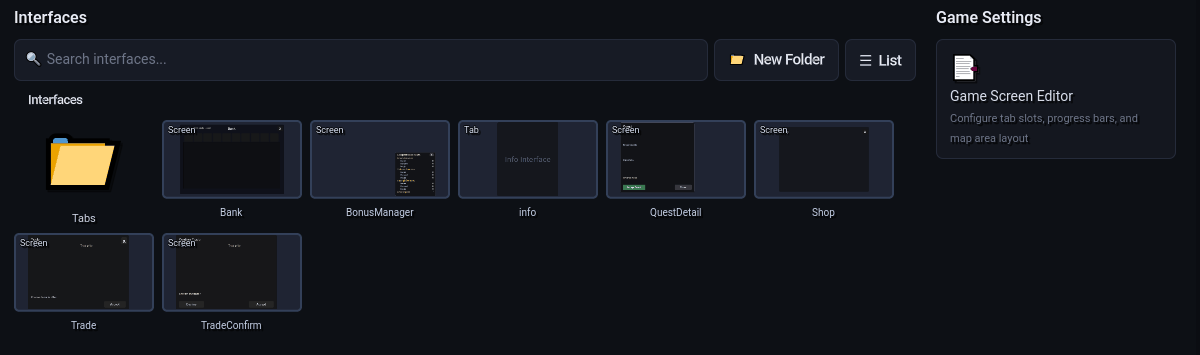
When you enter the GUI Editor (or click the + tab in its tab bar) you land on the main menu. It has two columns:
| Column | Contents |
|---|---|
| Interfaces | A folder-organized library of every interface in the project, shown as thumbnail tiles or a list. A search box, a New Folder button and a Tiles / List toggle sit above it, with a breadcrumb trail for the folder you are browsing. Below the library are the + Game Screen and + Tab Interface buttons. |
| Game Settings | A Game Screen Editor card that opens Game Screen mode in its own tab. |
Double-click a tile to open the interface in a tab. Right-click a tile for Open, Rename, Duplicate and Delete. Drag a tile onto a folder breadcrumb to move it into that folder.
Thumbnails are rendered lazily and cached under .interface_thumbnails/ at the project root, outside assets/, so they are never packed into a build.
Interface types#
Every interface has a type, stored as metadata inside its scene file. The type decides the canvas size and the folder the file is saved to.
| Type | Canvas | Saved to | Purpose |
|---|---|---|---|
| Gamescreen Interface | 600 x 400 | assets/interface/screens/<name>.tscn | Overlay windows opened during play (shop, bank, quest detail, dialogs). |
| Tab Interface | 256 x 308 | assets/interface/screens/tabs/<name>.tscn | A panel shown inside the side-tab area when its tab is selected. |
| Chatbox Interface | — | — | Listed in the create dialog as Coming Soon; it cannot be created yet. |
Three system scenes also exist under assets/interface/screens/_system/ (map_area.tscn, chat_area.tscn, tab_area.tscn). The editor generates them when missing. They are not listed in the library, and Rename and Delete are disabled for them.
Three tab interfaces are reserved: inventory, equipment and skills. The client draws those panels from its own built-in scenes, so the project copies are hidden from the library and skipped on export. See Tabs.
Files the editor writes#
| File | Written when | What it is |
|---|---|---|
assets/interface/screens/**/<name>.tscn | On save | The interface scene: a root Control sized to the canvas, with all styling baked in as explicit overrides so it renders identically in the client. |
assets/data/interface_database.json | After every save and on export | Maps each interface's persistent numeric id to its name, packed path and type. A copy is written to server/data/interface_database.json; the server resolves interface names through it. |
assets/data/interface_manifests/<name>.json | After every save | A listing of every node in the scene (name, type, path, writable properties, action metadata) for tooling and the server. |
server/scripts/interfaces/<Name>Script.cs | On first save, if absent | A stub server script implementing IInterfaceScript for this interface. |
interface_library.json | When you create, move or delete library folders | Virtual folder assignments for the main-menu library. |
assets/interface/screens/templates/<name>.tscn | Save as Template | Reusable node subtrees that appear in the component palette. |
packs/interfaces.pck | Pack Interfaces | A small PCK containing only interface files, for quick testing. |
Interface IDs are allocated once (the highest existing interface_id across the project plus one) and stored in the scene, so renaming or adding screens never renumbers existing ones. Duplicating an interface gives the copy a fresh ID.
The editing workspace#
Opening an interface switches the center of the window to the editing layout:
- Tab bar along the top of the center area, one tab per open interface (up to 10). A modified interface shows
*after its name. The Save, Script and Pack Interfaces buttons sit at the right end of the bar. - Toolbar under the tab bar: V (Select), G (Move), R (Rotate), Pick (choose among stacked nodes), Lock, Snap, Grid, a snap size spin box (1 to 50 px, default 5), Preview, a Problems badge that appears only when validation finds something, and the Minimal / Fixed / Resizable view mode buttons.
- Scene Tree on the left, with a + button that opens the Add Node dialog. Each row has visibility and lock toggles.
- Canvas in the center: the interface rendered inside a sub-viewport, with a selection overlay for dragging, resizing, marquee selection and guides.
- Properties on the right: collapsible sections for the selected node.
- Components along the bottom: the palette used to add new widgets.
View modes#
| Mode | Workspace | Behavior |
|---|---|---|
| Minimal | 600 x 400 (or the interface's own size for tab interfaces) | Default. The root is locked in place; the workspace is exactly the canvas. |
| Fixed | 900 x 600 | Shows the interface over a mock of the client's compact screen. The root stays locked; a tab interface is placed at the tab area's position so you see it in context. |
| Resizable | 1200 x 800 | Shows a larger screen mock and lets you drag the root within a 900 x 600 bound to choose where it docks. |
The root's docking is stored as an anchor preset in the scene, and the client positions the interface from that preset when it opens it.
Saving#
Press Ctrl+S or click Save. The first save of a new interface writes it to the folder for its type using the name you gave it; Save never asks for a path. On every save the editor:
- Bakes inherited theme values into explicit overrides, so the scene does not depend on the editor's theme.
- Assigns a persistent
interface_idif the scene has none. - Hides Node Spawners, so the client never draws the template child they hold.
- Writes the
.tscn, regeneratesinterface_database.jsonand the interface's manifest, and generates the server script stub if it does not exist. - Runs validation and updates the Problems badge.
Undo and redo (Ctrl+Z / Ctrl+Y) work per open interface and cover node edits, transforms and property changes.
Pack Interfaces (Ctrl+Shift+P) writes packs/interfaces.pck with only the interface scenes, database and manifests. Full builds made by Play Cloud or Publish include the same files automatically; see Test your game.
What the client can and cannot render#
The game client is a fixed renderer. There is no client-side scripting of any kind: an interface scene cannot carry code, and nothing in it runs logic on the player's machine. Every behavior is a round trip through your server scripts.
What works:
- The server opens and closes interfaces by name (
player.OpenInterface("Shop")), optionally in walkable mode so the window stays open while the player moves. - The server sets node text, visibility, position, texture, numeric value and enabled state by node name; fills item slots and whole item grids; spawns copies of a template node for lists; and drives a Model Viewer widget.
- Widgets you mark with an action ID report back to the server when pressed, toggled, submitted or changed, and the server's
OnActionhandler decides what happens. - Close on Esc, set on the interface root, lets the client close the window when the player presses
Escape.
What does not work:
- Timers, tweens, animations or any client-side styling changes. A countdown label must be updated by the server, one message per tick.
- Custom behavior for the player right-click menu, equipment slots, sounds or the camera. Those are fixed in the client.
- Tab panels for
inventory,equipmentandskills; the client always uses its own.
The full wiring procedure, including the generated server script and the list of server calls, is on Custom interfaces. Server scripting in general is covered under Scripting.
With AI (MCP)#
Interfaces can be authored without opening the editor. list_interfaces and get_interface read what exists; define_interface writes a screen (filing it by type into the same folders the editor uses and updating both interface databases); delete_interface removes one together with its database rows. See MCP tools reference.