
Push a Build from the Editor
Use the editor's Publish popup to name, package and upload a build, follow its progress, test it, and recover from a failed upload.
7 min read
What pushing does#
Pushing a build is the only publishing action that happens in the editor. The editor exports your project into the three build artifacts (client PCK, server data zip, game config), hashes them, uploads them to the platform, and the platform verifies and stores them as a new Ready build. Everything after that — going live, hotfixes, rollbacks, beta, hosting — happens on the Creator Dashboard.
Pushing never changes what players see. A freshly pushed build sits in the build list until you deploy it. That makes it safe to push often: a bad build costs nothing until you promote it.
Before you push#
- Sign in. Open the Account menu in the top-right of the editor and sign in with your Vastopia account. The popup tells you if you are signed out or if your session expired.
- Have a linked game. Every project created by the editor carries a platform game ID in
project.vastopiaunder[platform] game_id, and the editor registers that game with your account each time you open the project while signed in. You do not need to create the game on the website first — it appears on the dashboard with your first push. - Save your work. The export reads files from disk. Press
Ctrl+Sin any editor with an unsaved*marker first.
First time: publish the listing#
The first time you open the popup for a game that has no listing yet, its title is Publish Game and it shows a single Basic Info card:
- Click Publish in the top-right of the editor.
- Check the Name field. It is prefilled with the project name and is the name players see in Discover.
- Click Publish.
This publishes the game's listing (public visibility) so it can be found once it goes live. The status line reads "Published! Create a build to send it live.", the popup switches to its Update Game view, and the top-right button's label changes from Publish to Update from now on.
Create a build#
With the listing published, the popup shows three cards: Current Version, New Build and Build History.
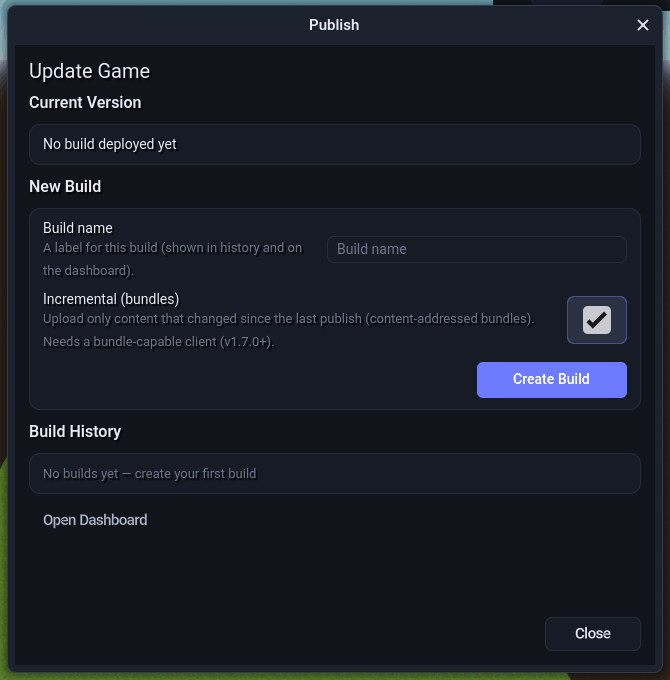
- Click Update (top-right) to open the popup. Current Version reads
Live: v3for a live game orNo build deployed yet. - In New Build, type a Build name — something you will recognize in the history later, such as
Combat reworkorBeta 3. If you leave it empty the editor names itBuild YYYY-MM-DD. - Optionally tick Incremental (bundles) to upload only content that changed since the last push. See Builds and Versions for what that implies.
- Click Create Build.
- Watch the progress line (below). When it finishes, the editor opens your browser on the game's Update tab in the dashboard so you can deploy the build immediately.
You can keep editing while the push runs, but do not close the editor: the upload runs inside it.
What happens during a push#
The New Build card replaces its fields with a phase line, a progress bar and a detail line while a push is running:
| Phase shown | What is happening | Typical duration |
|---|---|---|
| Exporting your project… | Maps, data, interfaces and assets are packed into a PCK, models are converted to self-contained scenes, and server/ is zipped. The detail line shows elapsed time. | Seconds for a small project; a few minutes for a large one. |
| Checksumming the pack… | SHA-256 of the PCK, server zip and config are computed before anything is sent. | Proportional to pack size. |
| Uploading to the platform… | Files go straight to storage. The detail line shows 1.24 GB of 2.40 GB · 52% · 12.3 MB/s · ~2m left · 3m 10s elapsed. | Depends on your connection. |
| Finalizing on the platform… | The platform checks every uploaded file against the declared sizes and hashes, signs the build, and marks it Ready. | A few seconds. |
Details worth knowing:
- A PCK of 16 MiB or more is uploaded as a resumable multipart transfer (8 MiB parts, three in flight). Its progress is saved on disk, so a dropped connection only costs the parts that had not finished.
- If the pack is larger than 1 GB, the status line warns you: that is the download every player takes before they can play.
- After a successful push the editor also syncs your item catalog (names and icons) to the dashboard's shop tools and saves a copy of the project source to the cloud for the project wizard's "continue on another machine" download. Both are best-effort and never fail the push.
- The platform limits each account to 60 build requests per hour. Creating a build and each Play Cloud deploy draw on the same budget.
When the push completes, the status line reads "Build 'Combat rework' sent in 4m 12s — opening the dashboard to push the update.", Build History refreshes, and the dashboard opens on /dashboard/<gameId>?tab=builds.
After the push#
- Build History (in the popup) lists builds newest-first as
#7 Combat reworkwith the date, the size and a status badge in upper case: READY, BETA, ARCHIVED, DELETED or FAILED. The build that is live shows its version label instead —v3, orv3 patchafter a hotfix. - Open Dashboard jumps to the same Update tab the editor opened automatically.
- Next to the top-right buttons, a small badge reads Live (v3) when a version is deployed or Test when nothing is live yet. It refreshes after every push.
- Play Live (top bar) becomes enabled only once a version is actually deployed. It launches the standalone game client signed in as you and connected to your live server.
Testing a pushed build#
A Ready build is stored, not running. There are three ways to play it before it reaches players:
| Method | Where | Best for |
|---|---|---|
| Play Cloud | Editor top bar | Iterating. Builds the client content on your machine and deploys only server/ to a temporary cloud test server, then opens the client. Does not create a dashboard build. See Test your game. |
| Beta | Dashboard Update tab, destination Beta | Letting other people play a specific build behind a code, for up to 10 players. See Beta Access. |
| Test server via AI | MCP deploy_test_build | Agent-driven checks. Runs a Ready build on a test server and returns a host and port; stop it with stop_test_server when done. |
Common failures#
The popup replaces the progress bar with a red panel describing the error and offering one or two recovery buttons. Retry Upload re-sends the pack that was already built without re-exporting and resumes any multipart parts that already landed. Rebuild && Upload exports from scratch.
| Message | Cause | Fix |
|---|---|---|
| "You're signed out — open the Account menu (top right) to sign in." | No session. | Sign in, reopen the popup. |
| "Your session expired — sign in from the Account menu, then reopen this." | The platform rejected the stored session. | Sign in again, then Retry Upload if a pack was built. |
| "This project isn't linked to a game." | project.vastopia has no [platform] game_id. | Reopen the project from the Project Wizard; projects created by the editor always carry an ID. |
| "Pack build failed: export error" | The export step failed (a broken scene, missing file or full disk). | Fix the problem reported in the editor's output, then Rebuild && Upload. |
| "Upload failed: … network error / timeout" | The connection dropped mid-transfer (the editor already retried transient errors up to three times). | Retry Upload — the built pack is still on disk. |
| "Upload failed: … 403 / signature / expired url" | The upload links for this build expired. | Rebuild && Upload to start a fresh build. |
| "Finalize failed: [KIND] …" | The platform could not verify an artifact (size or hash mismatch, or a missing file). | Retry Upload re-sends into the same build; if it repeats, Rebuild && Upload. |
| "Already uploading" | A previous push or Play Cloud is still running. | Wait for it to finish; the editor clears a stuck busy state after about 18 minutes. |
A build that never finalizes stays uploading (hidden on the dashboard) until a cleanup job marks it failed. It does not count against anything; just push again.
With AI (MCP)#
The same pipeline is available as tools: export_pck, build_server_package, create_build, upload_build_artifacts (or upload_pck_multipart for large PCKs) and finalize_build. list_builds shows the result, deploy_test_build runs a Ready build on a test server, read_server_logs with mode:"test" reads its output, and get_deploy_status / wait_for_deploy follow any deploy the platform is running for the game.